Purpose
This article overviews the Reports feature in the Meal Planning Dashboard.
Process
Step 1- Navigating to the Meal Planning Reports Page
From the Meal Planning Dashboard, click the clipboard icon in the lefthand column to get to the Meal Planning Report page.
(Hovering over the icon will show a bubble with the word "Reports" to get to the Reports Page.)
Step 2- Run Report Filters
Towards the top of the Reports page are the report filters - Site, Date Range, and Meal Plan.
- Site: Click Site (or Site (all) if there are multiple sites) at the top of the page to select the site(s) the report will run for.
- Date Range: Select the date range the report will run for (default is 6 months).
- Meal Plan: Allows you to select which meal plan(s) will be included in the report.
Step 3 - View Applicable Reports
Below are various reports that will show up on the reports page.
Once ran, any of the reports can be downloaded into .csv, .xlsx, or .json, by clicking the download cloud icon at the top-right of the report.
Default Meal Planning Reports
These following report types are shown without respect to budgets and costs, or allergens in place.
Meal plans per site
List of meal plans
Most frequently used dishes
Meal Planning Reports with Budget and Costs
The following reports are shown if budgets and costs are in place.
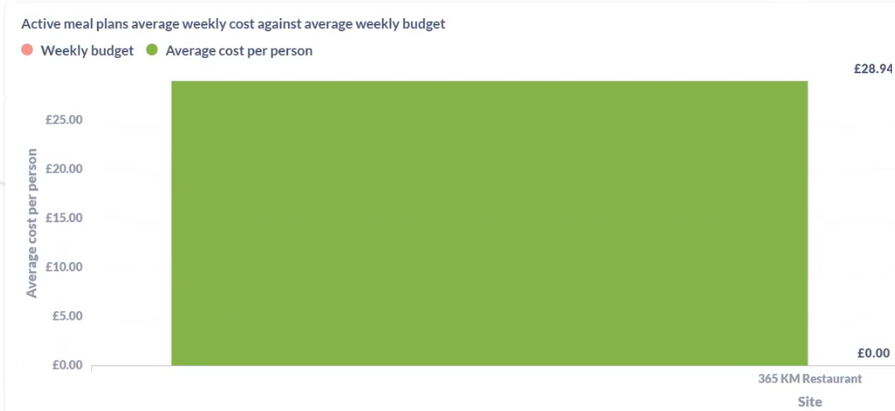
Active meal plans average weekly cost against average weekly budget
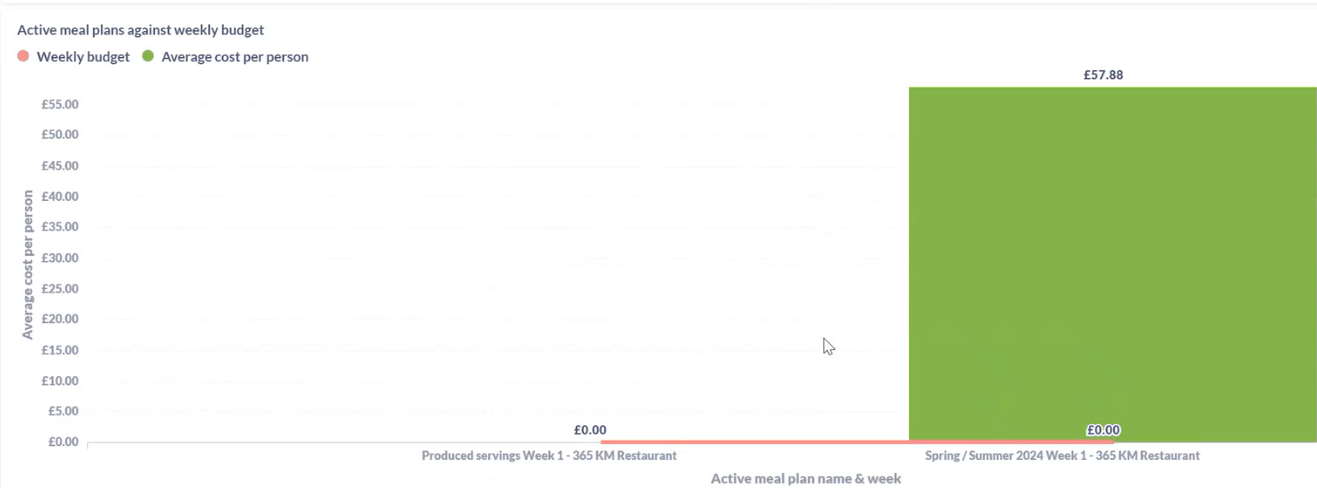
Active meal plans against weekly budget
Active meal plans produced weekly costs against weekly budget
Allergen Reports
The following reports include allergens.
Most frequently used dishes with Allergens
Active meal plans
This report shows a full active meal plan, including the allergens. It was created for a specific client, who used it as their SQL database into a macro that they had outside.
Carbohydrate Report
As the name suggests, the carbohydrate report includes carbohydrates. (Used often in the Education and Healthcare sectors.)
Step 4 - Leave the Meal Planning Reports Page
To leave the Meal Planning Reports page, simply click the calendar icon in the lefthand column to return to the Meal Planning Dashboard.
(Hovering over this icon will show the words "Meal Planning.")